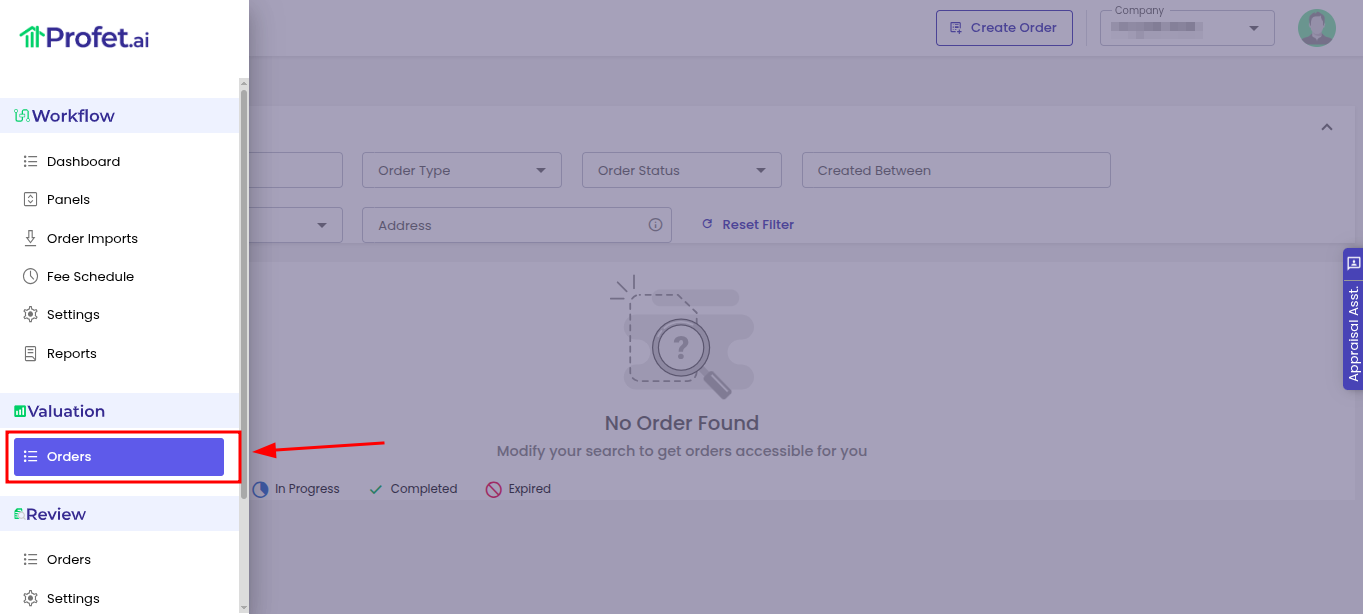
Make sure you are in the Valuation platform. If not, click on the hamburger menu located at the top-left corner of the screen and select Orders under the Valuation section.
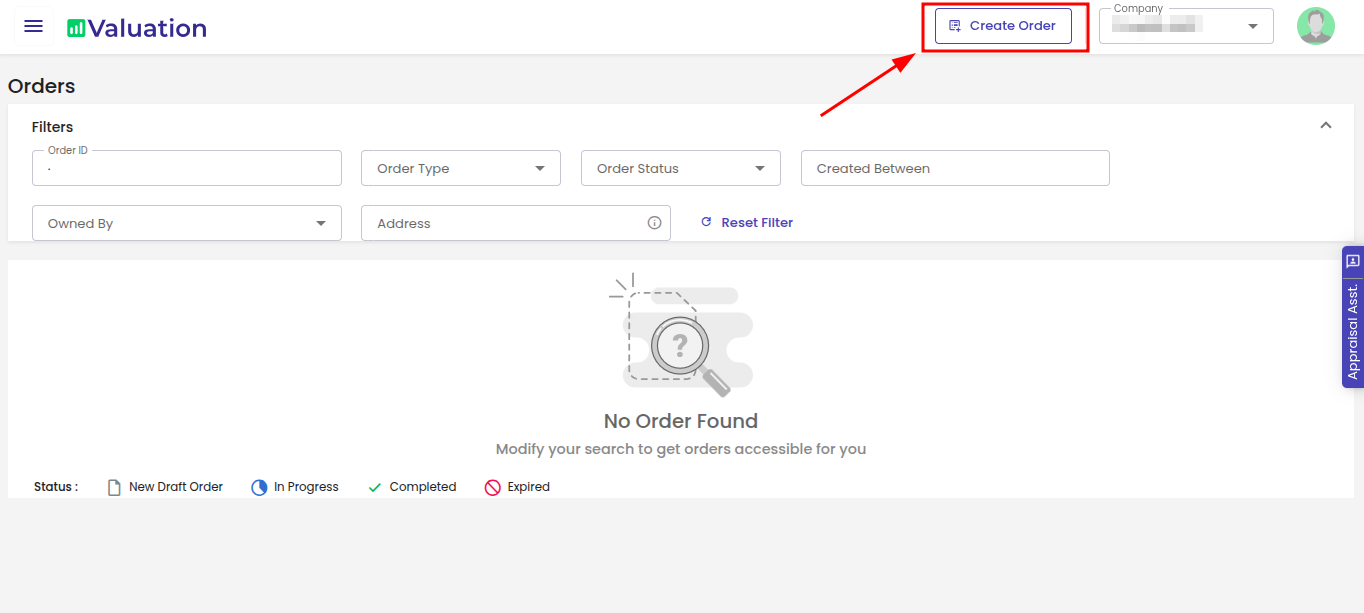
Click on the “Create Order” button located at the top-right corner.
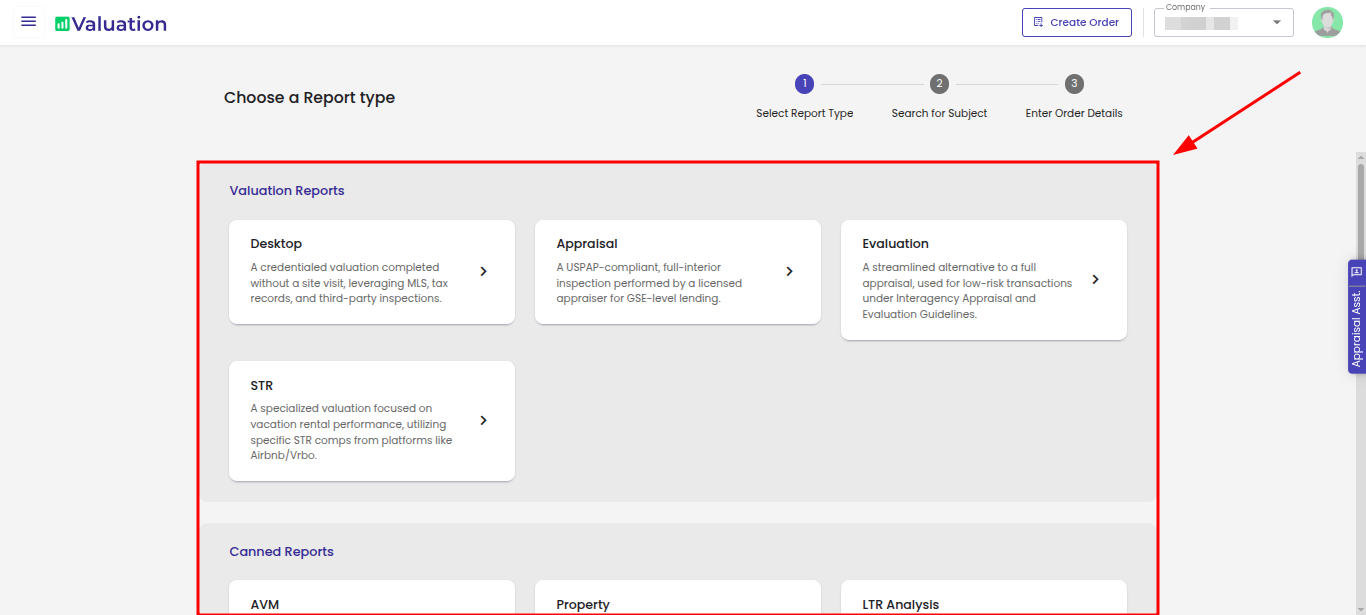
Choose the desired report from our Valuation reports, Canned reports, or other options like a BPO
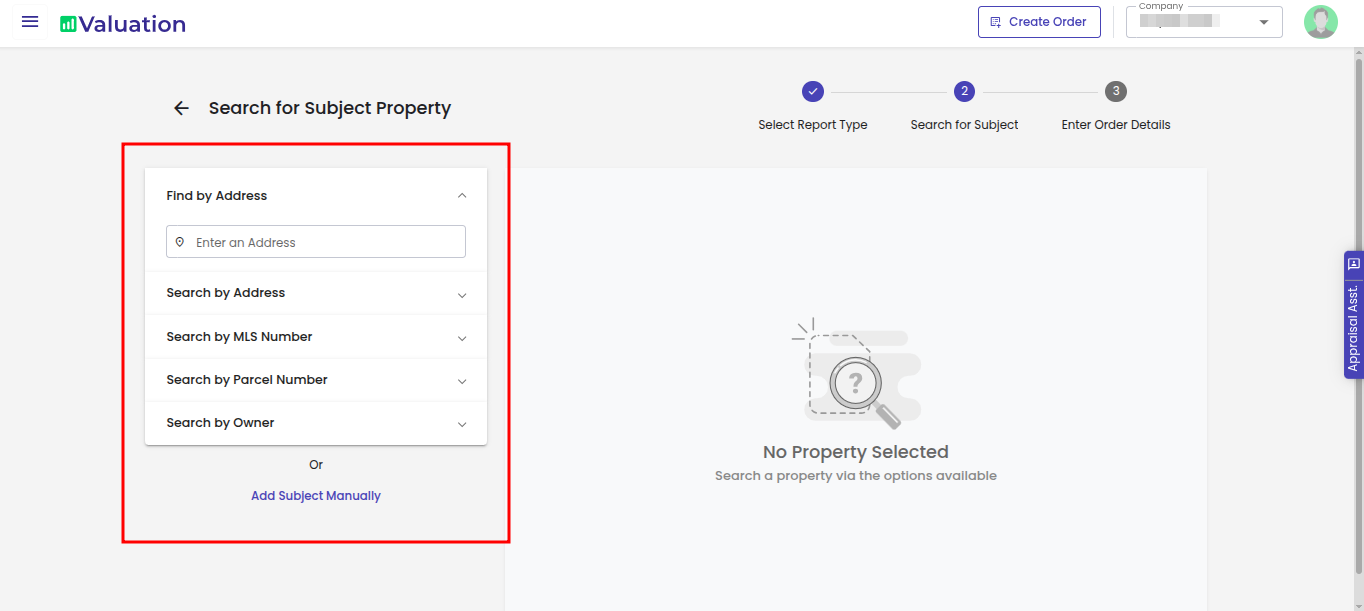
Enter the property details that you want to search for. You can choose multiple ways to search for the property.
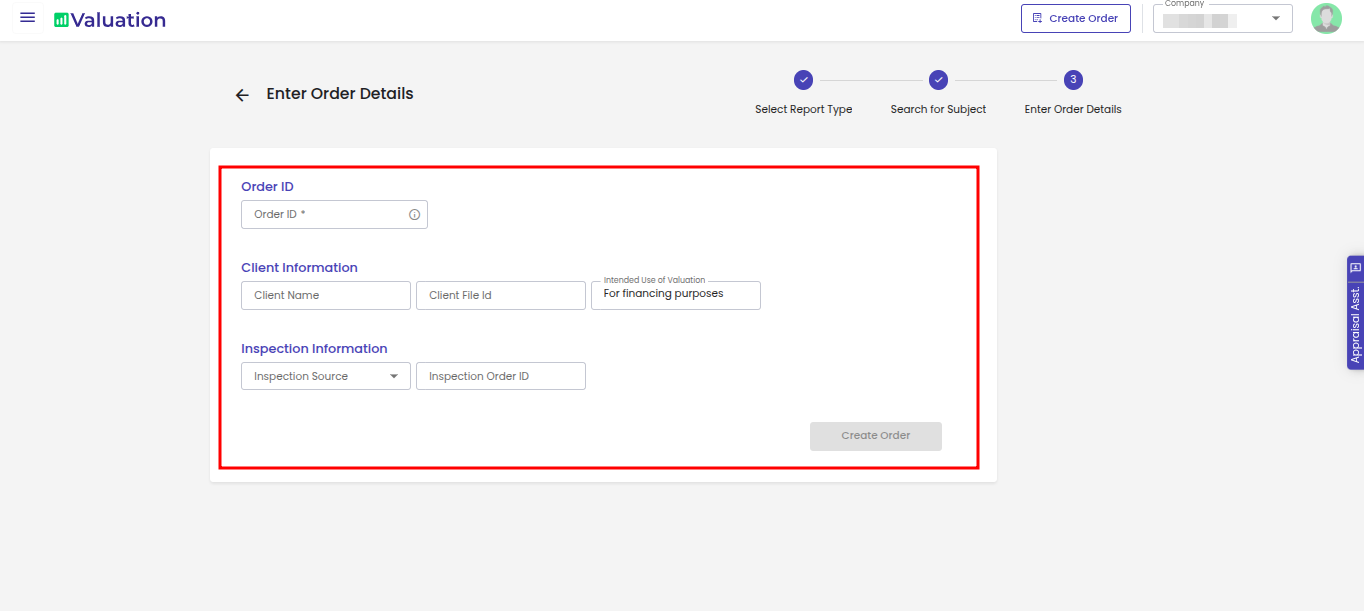
Enter Order Details like Order ID (Mandatory) and Client Information and proceed with creating Order.
How to Access Subject Property Details?
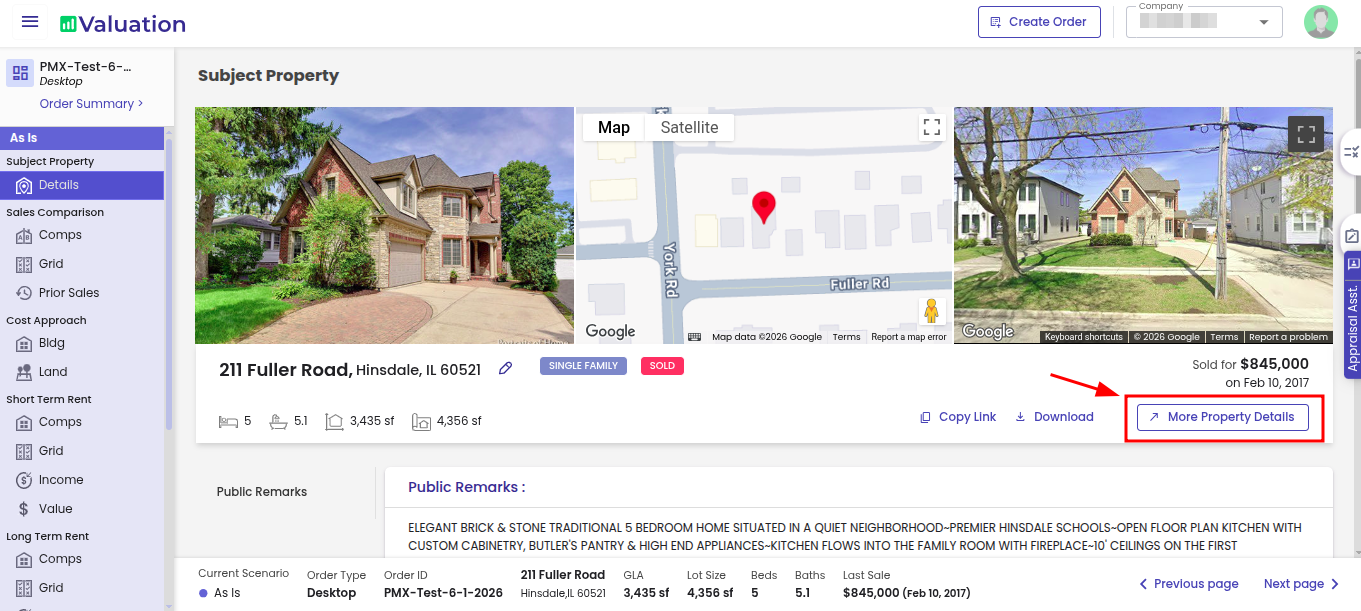
To access additional property-related information, click on “More Property Details”. This section provides expanded subject property insights and allows users to complete additional required fields related to the property.
Important: Fields highlighted in red are mandatory. The order cannot be completed unless all required fields are filled in.
How to Configure Comparable Search?
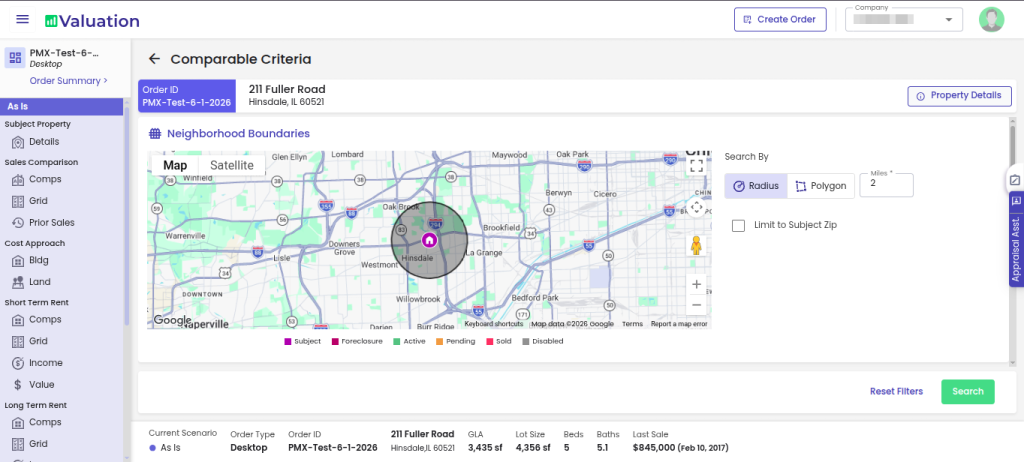
The Comparable Search page allows appraisers to identify, review, and select the most relevant comparable properties for valuation analysis. The map view displays the subject property location, nearby comparable properties, and the selected search radius
In this Section You Can:
Configure comparable search criteria
Apply search filters
Search for relevant comparable sales
How to select Comparable Properties?
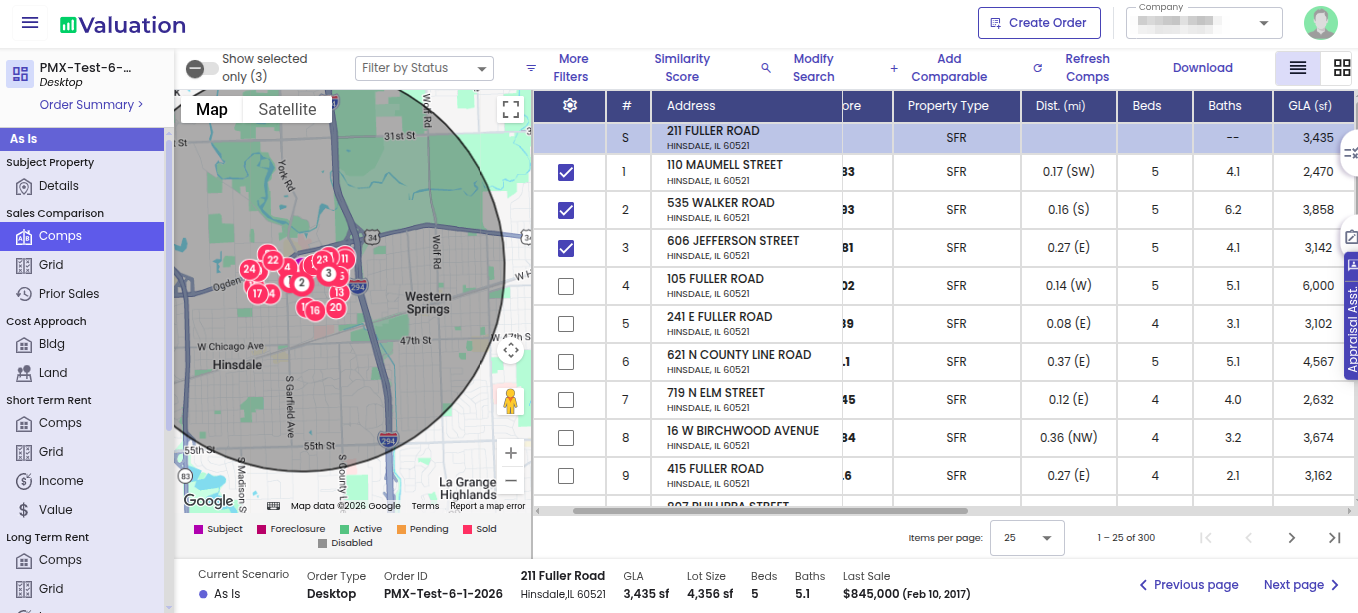
Select at least three comparable properties from the list returned by the system. Review the comparable properties carefully and choose the most appropriate comparables based on factors such as similarity score, location, property characteristics, market relevance, and distance from the subject property.
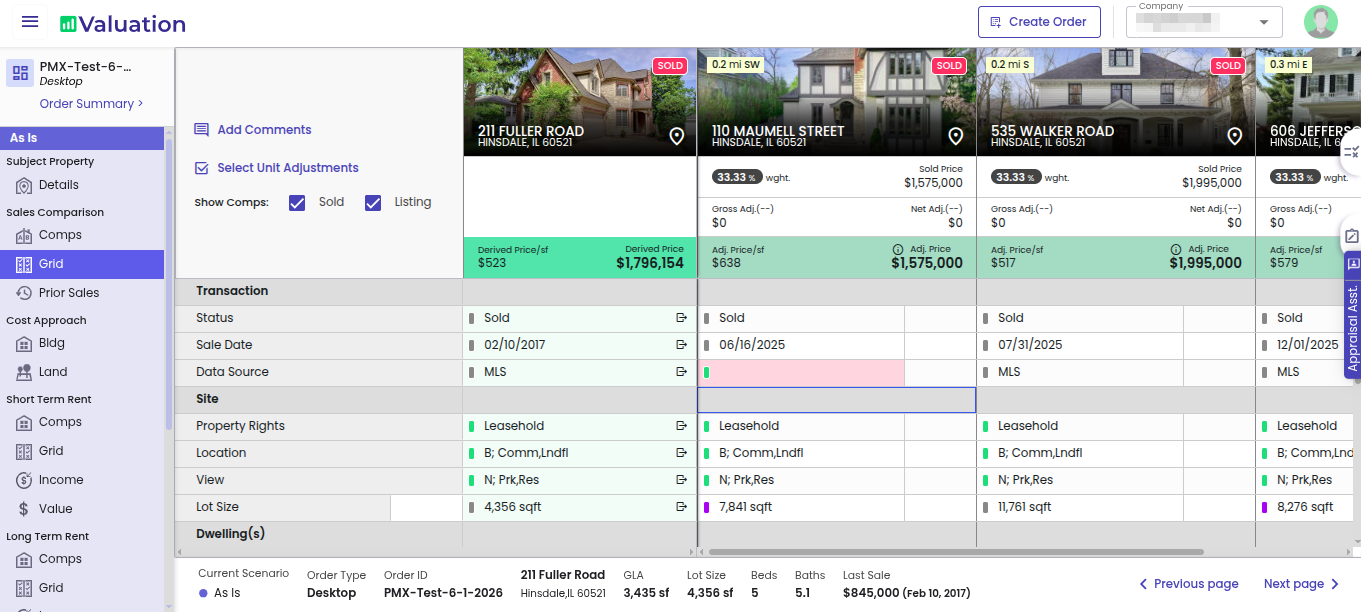
How to review the Grid Analysis?
The Grid List provides a side-by-side comparison between the subject property and selected comparable properties. This information helps support the final value conclusion. Appraisers can review and adjust property differences directly within the grid to reflect market-supported value adjustments. The section also displays adjusted prices, gross adjustments, net adjustments, and weighted comparable values to help determine the most appropriate market value estimate.
Important: Fields highlighted in red are mandatory and must be completed before proceeding.
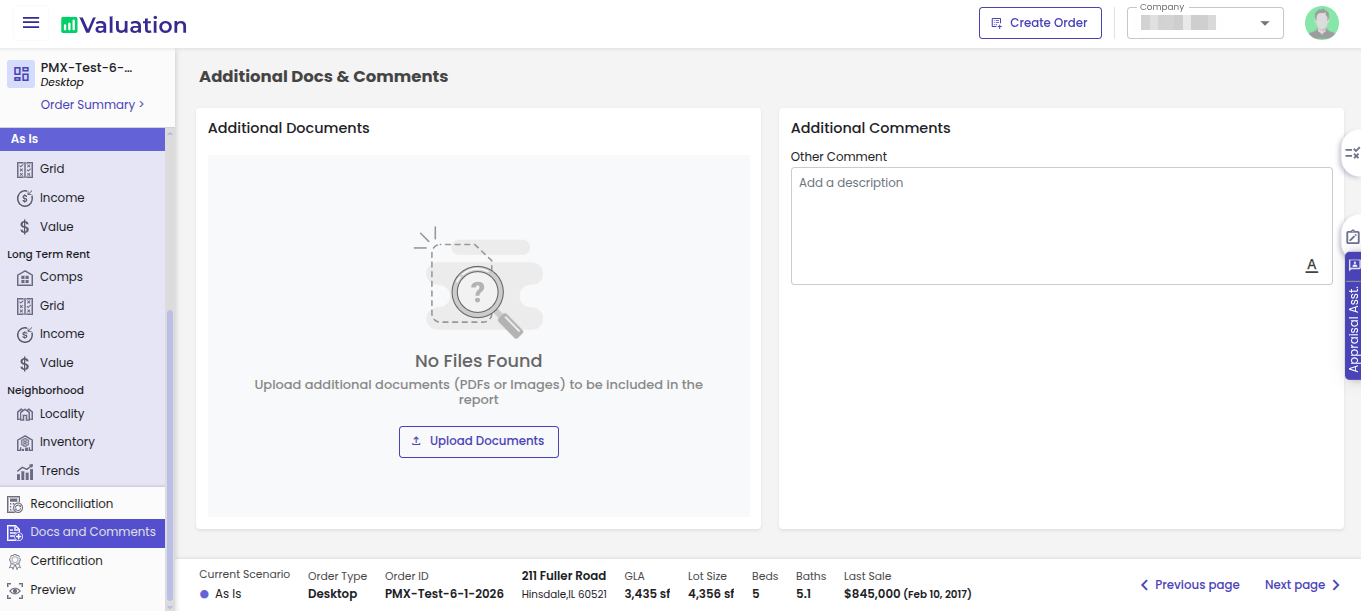
Upload Additional Documents & Comments
The Additional Docs & Comments section allows appraisers to upload supporting documents and add additional notes related to the valuation report. Users can upload files such as property images, supporting PDFs, market documents, repair estimates, or any additional documentation that may help support the valuation analysis and improve overall report completeness. Uploaded documents will be included as part of the final report documentation.
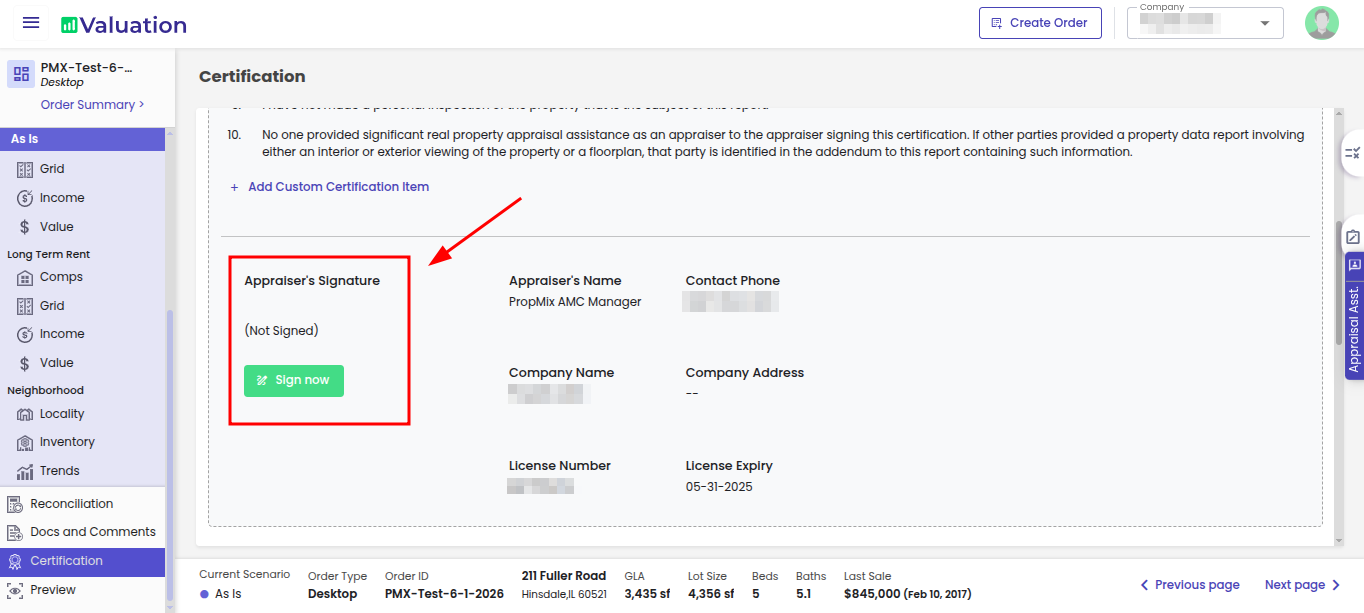
How to Complete a certification?
The Certification section contains the appraiser certification statements, license information, disclosures, and signature area.
In order to add sign a valid License and Signature should be present in profile.
Click on Sign Now to sign the report.
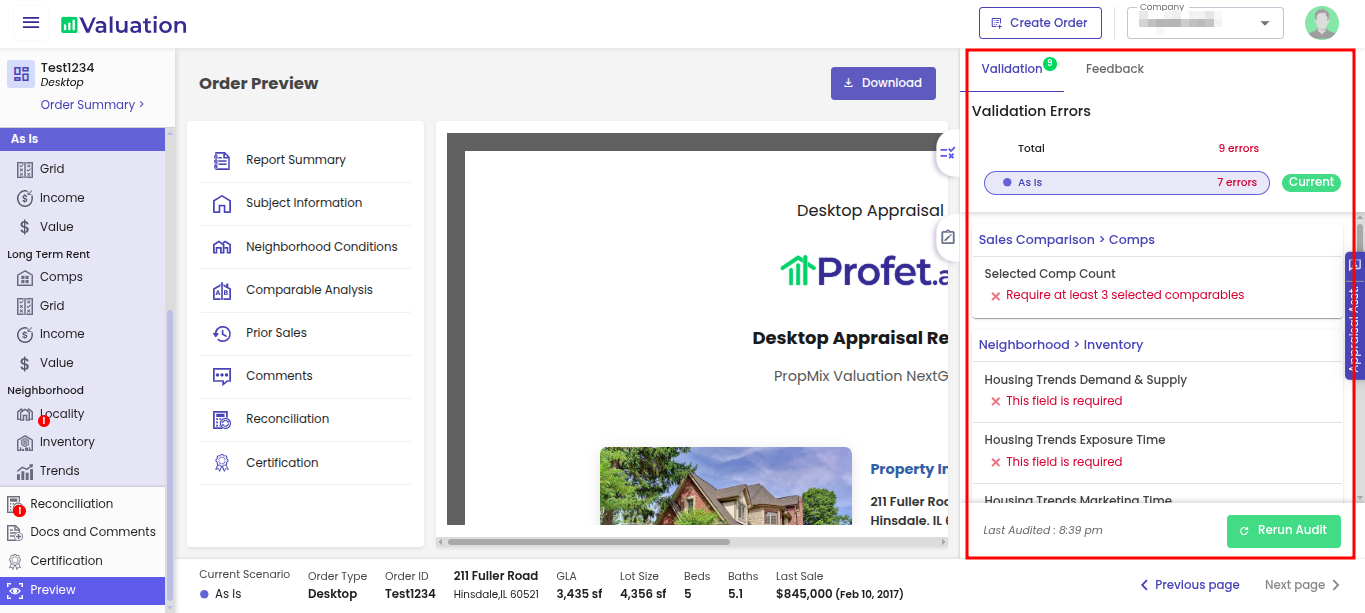
How to resolve a validation error?
If a mandatory field is missing, the system will return a validation error indicating where the field is missing, allowing you to easily identify and correct the missing field.
How to download a Report?
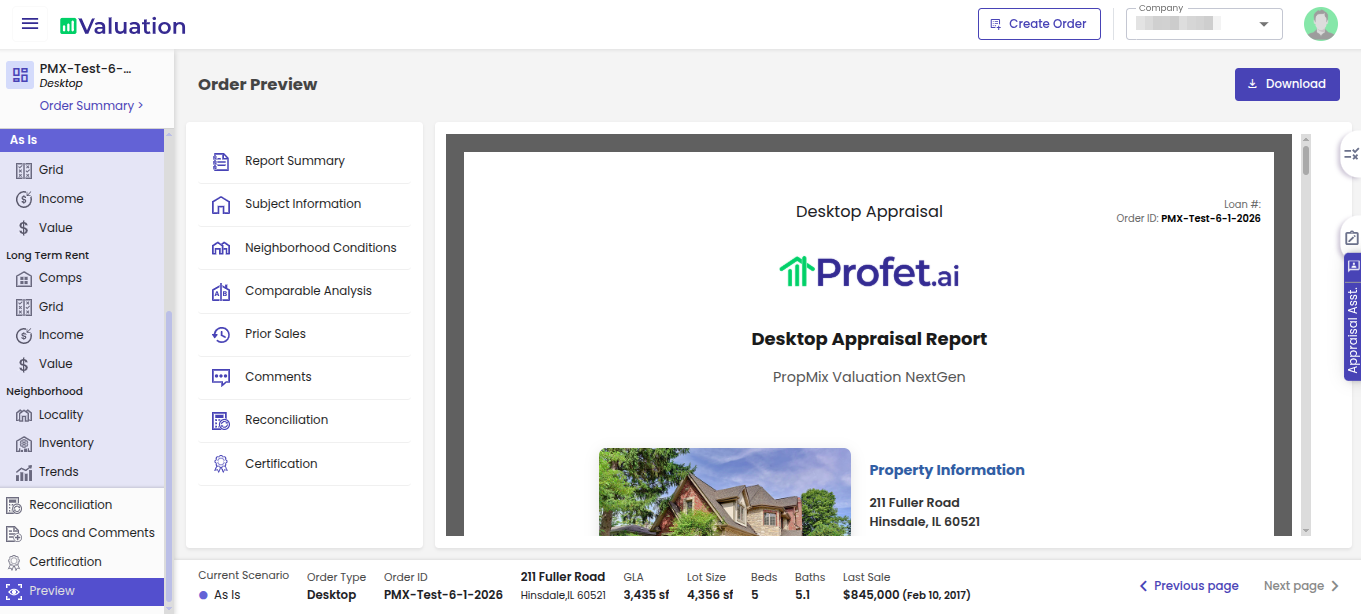
Ensure that all necessary fields are completed in the preview page.
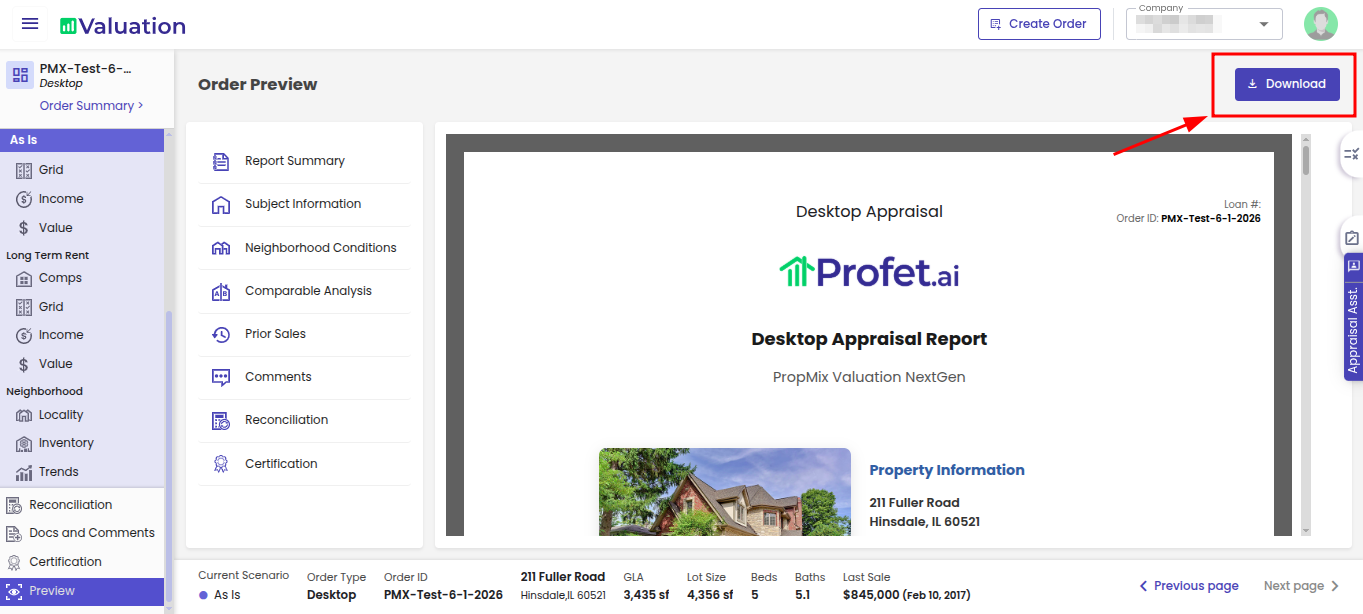
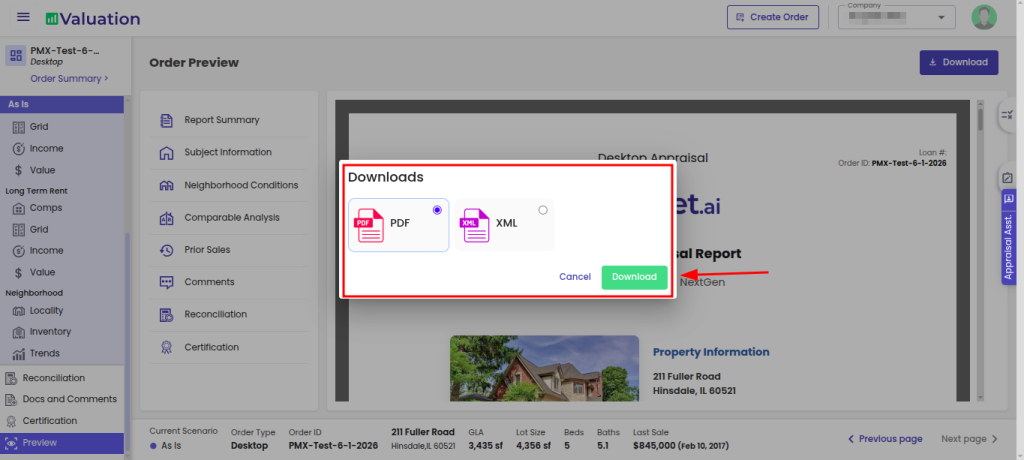
Click on ‘Download‘ in the top right corner in the preview section to download the complete report